Active Acoustics
Fulcrum One supports the creation and rendering of active acoustics scenes using arbitrary room models and the Fulcrum Venueflex DSP processors. One's Active Acoustics capability is useful for multiple applications, including:
- Immersive audio mixing
- Virtual environments
- Closed-loop active acoustics
- Auralization of simulated spaces
We recommend reviewing the Design Guide for Immersive Systems for an overview of designing a system for active acoustics.
The design process for creating an active acoustic space follows the conventions outlined in the "Enviroments and Acoustics" section, with some minor extensions related to the creation of Active Acoustic Spaces. Begin by configuring an Environment in the acoustics toolbox  based on the desired simulated environment and material selections.
 based on the desired simulated environment and material selections.
Preparing the Environment
Every environment created for active acoustics contains two additional components beyond the 3D objects representing it:
-
Emitters: Emitters are the acoustic sources that are used to radiate energy into the virtual space for the acoustic simulation. This corresponds to the number of "Inputs per Space" allocated to Venueflex processors in the project (more on that later). Emitters should be placed at the relevant location for the auralization task. This might be two "stereo" source locations on stage for most mix applications, or a "surround" configuration, or a specific location in a room for auralization.
-
Listeners: Listeners are the listener (receiver) locations that collect the acoustical energy in the virtual space. Each model will contain at least one listener. Place it at the relevant location where you wish to simulate the acoustic behavior.
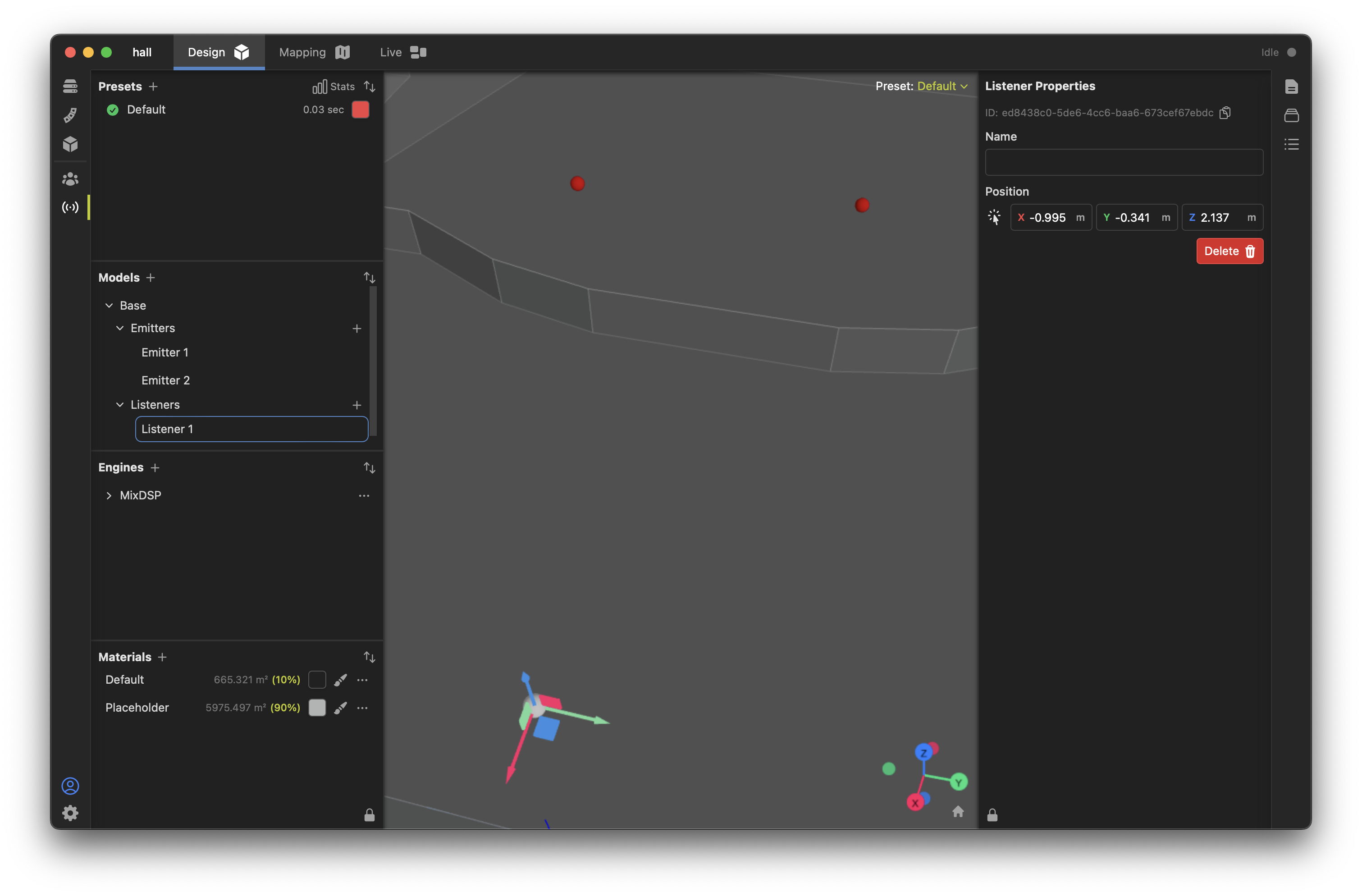
To get started, select the Environment and view its properties on the right-side properties box. Expand the section labeled Active Acoustics. Here you can position the listeners and emitters, and configure the active acoustics settings for the environment.
Configuring the Environment
Different reflective environments can be created using Environment settings, which will then be loaded into the Venueflex processors for real-time mixing or simulation. Begin by "designing" different presets with the desired models and material behaviors as described in the "Acoustical Design" section.
Several additional properties are relevant for Environments when using active acoustics. Select an Environment and view its properties on the right-side properties box:
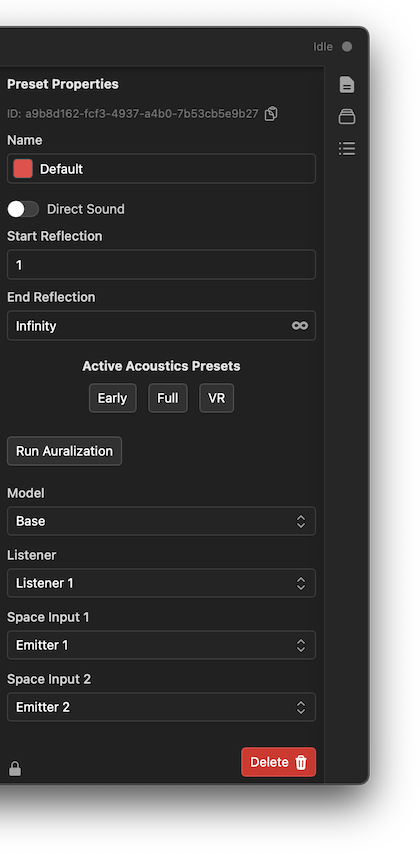
Configure the following for the specific preset, which will affect how it renders to DSP using a Venueflex processor:
- Gain Trim: This sets the gain level for the environment. This is useful for adjusting the level of the environment to match the level of other simulations during mixing.
- Listener: Move the listener to the desired location for the auralization task.
- Space Inputs: Move the emitters to the desired location for the auralization task.
- Direct Sound: Toggle whether or not direct sound will be rendered from the emitters. This should typically be off for active acoustics applications (direct sound will come from the mixing audio) and on for virtual reality and auralization applications.
- Start and End Reflections This sets the "order" of reflections that will be rendered. Typically this starts at 1 and ends at "Infinity" to render a full reverberant tail. This can be modified for special applications, for example, rendering from 1 (first) to 5 (fifth) orders typically creates a nice "early reflections" sonic impression.
- Early/Full/VR: Choose pre-defined reflection patterns for various applications.
Creating Active Acoustic Spaces
Active acoustic spaces can be though of as a "virtual effects rack" of room simulations that can be patched to Venueflex processors for real-time mixing or simulation. To create a new space, open the Acoustics toolbox and click the the + button to create a new space.
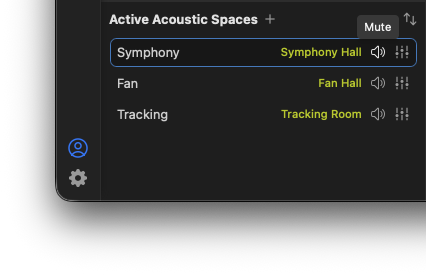
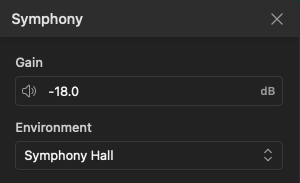
Spaces can be named and configured by clicking the processing icon  to open the space properties dialog. Here you can select the currently-loaded environment for the space, and adjust the space gain (fader) level. The space can also be muted by clicking the mute icon
  .
.
 to open the space properties dialog. Here you can select the currently-loaded environment for the space, and adjust the space gain (fader) level. The space can also be muted by clicking the mute icon
  .
.
Configuring Processors
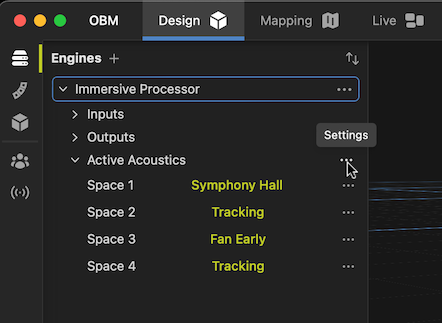
If you've added a Venueflex processor to your project and enabled Active Acoustics, you can patch and prepare the IO needed for active acoustics. First, open the processor properties dialog by clicking ellipsis "..." on the processor in the Engines list.
Next, click Configure to open the active acoustics settings dialog.
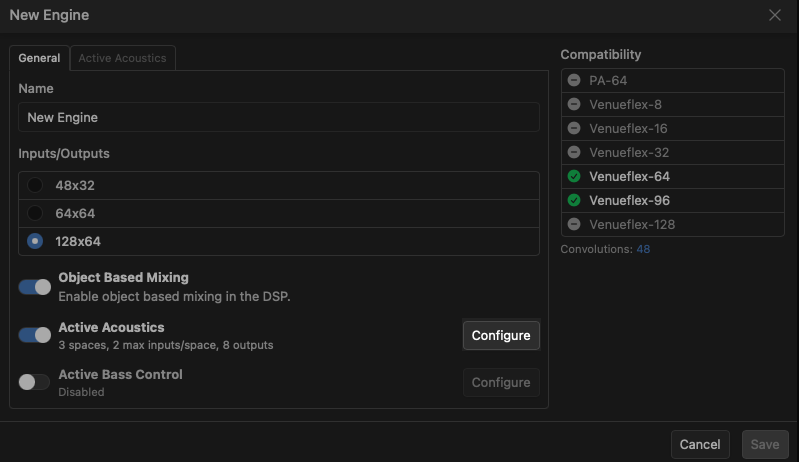
The active acoustics settings allows you to configure this particular processor to load and utlize any of the "Spaces" created in the acoustics toolbox.
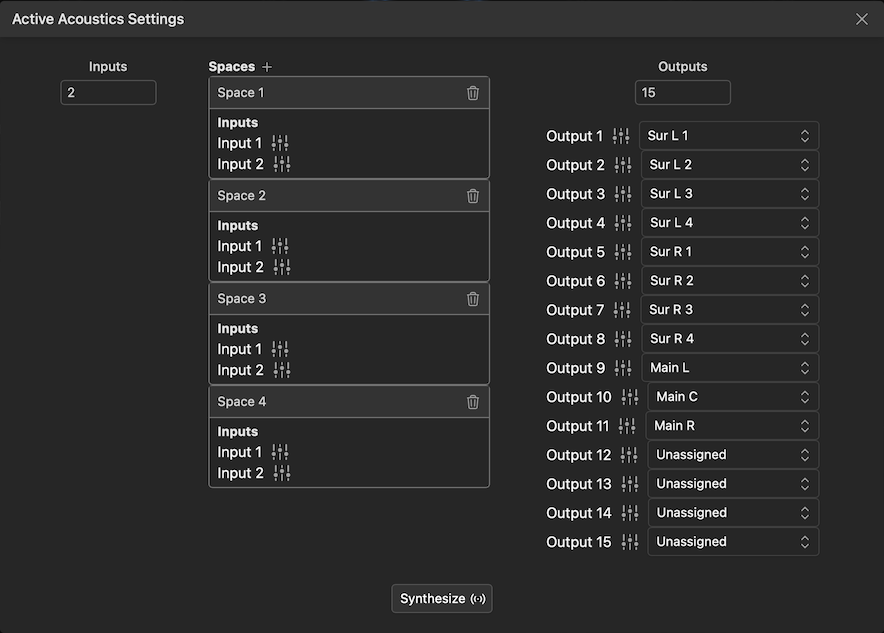
The available spaces and loudspeaker outputs will be shown in the engine setup dialog. To configure the active acoustics space to map to processor IO, perform the following actions:
-
Enable Spaces: Turn on any spaces you wish to process within this engine. This will change the number of available convolution channels.
-
Map inputs: Each virtual space has a number of inputs each associated with model emitters. These are typically connected to console bus feeds, which allows signals to be contributed to the space. Click the
button on each input and adjust the matrix to mix the needed physical inputs to the spaces. Note: in addition to external active acoustics feeds, signals may also be contributed directly from Object-Based Mixing sources internal to the processor. -
Map outputs: Each virtual space output must be connected to the physical DSP output channel driving the speaker(s) in question. Click the
icon to adjust the matrix to send the signal to the appropriate outputs. This connection handles the physical output signal routing. -
Select loudspeakers: Select the loudspeaker associated with each output. This connection handles the spatial reference for the virtual space rendering.
Recalling Live Presets
The environment playing in any space can be recalled during mixing by clicking the processing icon on the Active Acoustic Spaces list item to open the space properties dialog. Here you can select the currently-loaded environment for the space, and adjust the space gain (fader) level. The space can also be muted by clicking the mute icon .
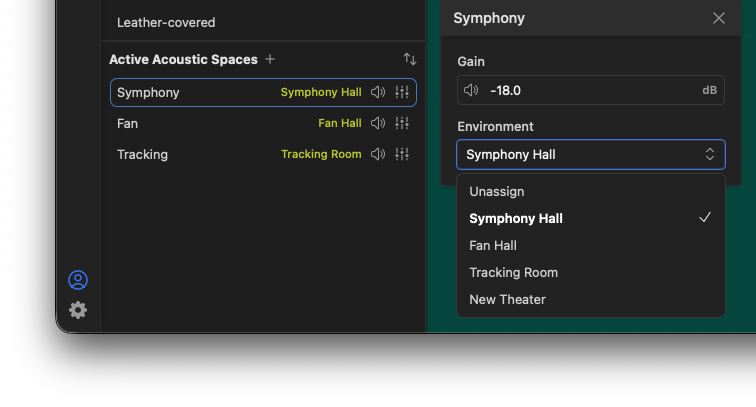
Active acoustics presets may also be included in automation cues for dynamic changes during operation or changed via external controls.